

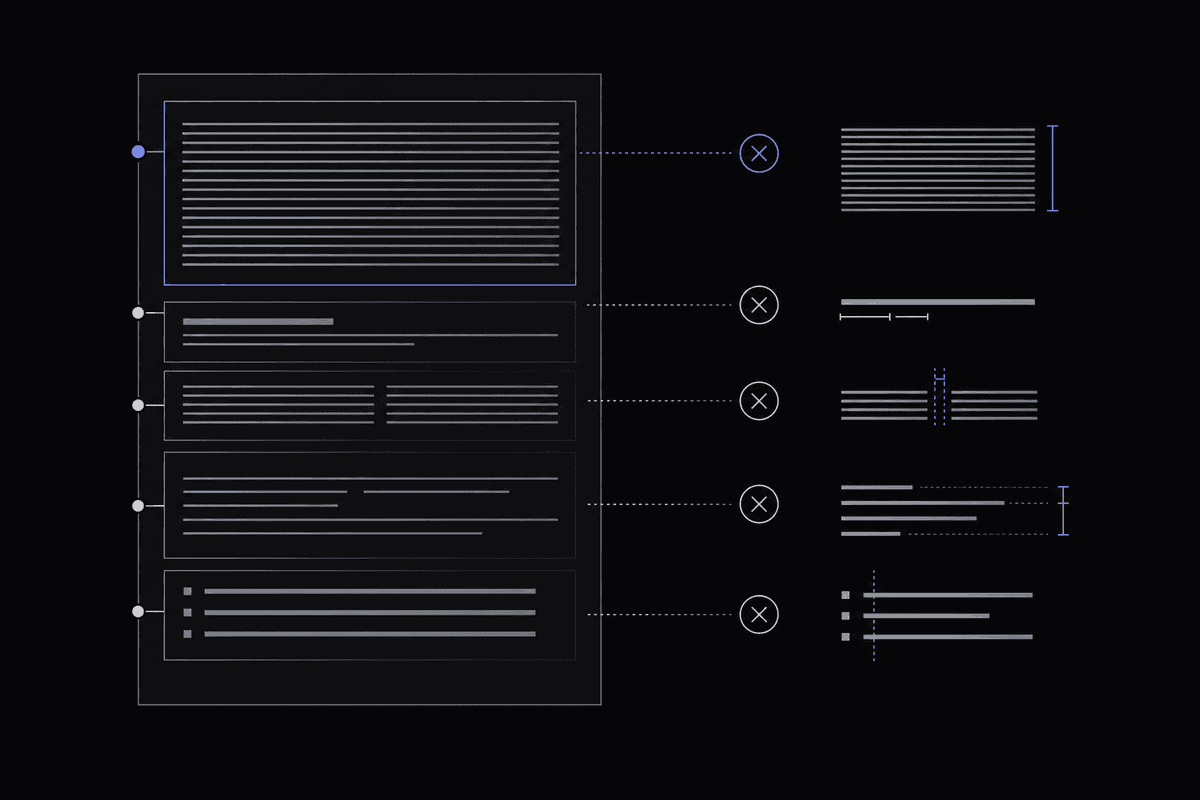
Walls of text, broken line breaks, rogue HTML tags — discover the 10 formatting mistakes silently killing your blog's readability and how to fix each one fast.
Text formatting mistakes hurt readability far more than most writers realize — walls of text, broken line breaks, inconsistent capitalization, messy whitespace, and leftover HTML tags all push readers away before they finish your first paragraph. This post walks through 10 specific formatting errors, explains exactly why each one damages the reading experience, and links to free tools that fix each problem in seconds. Run through the audit checklist in Section 7 before you publish anything.
Why Formatting Matters as Much as Writing
Formatting directly determines whether readers stay on your page or leave within seconds. Eye-tracking research consistently shows that online readers scan content in F-shaped or spotted patterns rather than reading word by word, meaning structure and visual hierarchy do most of the work before a single sentence gets read carefully.
Picture this: you've spent hours on a post. The research is solid, the argument holds together, the examples land. Someone finds it, scrolls for three seconds, and leaves. That's not a writing problem. It's a formatting problem — and it's one of the most common issues readability experts point to when diagnosing underperforming content.
Here's the uncomfortable reality: the average reader attention span in 2026 is approximately 7 seconds before a decision is made about whether to keep reading. Seven seconds. That's not enough time to appreciate your prose — it's only enough to scan the visual structure of a page and decide whether it looks approachable. A dense block of unbroken text fails that test almost every time.
Eye-tracking studies from the Nielsen Norman Group have long documented that web readers don't move through content the way they'd read a printed novel. They scan. They jump to headings, skim bullet points, look for bold text to orient themselves. Strip out those visual cues and both comprehension and engagement drop sharply.
The data on what happens when you actually fix formatting is striking. Improving content readability from a grade 12 level down to a grade 5 level increases completion rates by 83%, according to readability research cited widely in content strategy circles as of 2026. That's not a marginal gain. That's nearly doubling the number of people who finish what you wrote.
Bounce rate tells a similar story. Pages with poor visual structure consistently lose readers not because the writing is bad, but because visitors make a snap visual judgment and leave before giving the content a chance. Editors and content teams often find that fixing formatting alone — without changing a single word of copy — moves engagement metrics in meaningful ways.
Does formatting affect SEO, not just readers?
Yes, and in 2026 this connection is stronger than it used to be. Structured content with clear headings, short paragraphs, and clean HTML is significantly easier for large language models and AI systems to parse when generating summaries or featured snippets. Research into AI-assisted content summarization suggests that structured formatting can improve accurate AI parsing by 20 to 30 percent compared to unstructured prose. Your formatting choices now affect both human readers and the automated systems that decide whether your content gets surfaced at all.
Formatting isn't decoration. It's part of the communication itself. The rest of this post covers the 10 most damaging text formatting mistakes, why each one hurts readability, and exactly how to fix them.
Readers make a stay-or-leave decision in about 7 seconds based largely on visual structure, not writing quality — fixing formatting errors can increase content completion rates by over 80%.
Mistake #1–3: Paragraph and Line Break Issues That Kill Readability
The three most common paragraph-level formatting mistakes are writing wall-of-text paragraphs with no visual breathing room, pasting content from other sources without cleaning up stray line breaks, and using inconsistent spacing between sections. Each one makes content harder to scan and fatigues readers before they reach your main points.
Paragraph structure is where most blog formatting falls apart first. These three mistakes show up constantly, even in otherwise well-written content.
Mistake #1: The Wall of Text. A wall of text is a paragraph that runs six, eight, or ten sentences without a break. It's visually intimidating. Online readers see a dense block and their brain registers it as "hard work" — even if the content inside is valuable, the presentation signals that reading it will require sustained effort. Most readers won't make that trade.
The fix is straightforward: keep paragraphs short. Two to four sentences is the standard for digital content. Each paragraph should contain one idea, and when the idea shifts, break the paragraph. This isn't dumbing down your writing. It's respecting how people actually read on screens.
A concrete example: imagine a 150-word paragraph explaining three different causes of a problem. That block should be three separate paragraphs of roughly 50 words each — or better yet, a short intro sentence followed by a three-item bulleted list. The content is identical. The readability is dramatically different.
Mistake #2: Broken Line Breaks from Copy-Pasting. This one is subtle and easy to miss. When you copy text from a PDF, a Word document, an email, or another website and paste it into your CMS or writing tool, you often inherit hidden line breaks. These appear as mid-sentence breaks, oddly short lines, or hard returns that fragment your paragraphs in ways that look fine in one editor but render badly in another.
Writers often catch this problem only after publishing, when a paragraph that looked clean in draft view displays as a series of choppy, disconnected lines on the live page. The Remove Line Breaks tool strips those hidden returns cleanly, giving you a continuous block of text you can then re-paragraph with intention.
Mistake #3: Inconsistent Spacing Between Sections. One section has a single blank line, another has two, and somewhere in the middle a gap got accidentally deleted. This kind of inconsistency doesn't announce itself loudly, but readers feel it — the page looks slightly off, slightly unpolished. In professional publishing, consistent spacing is a baseline standard. For blog content, it signals whether a writer cared about the finished product.
When you need to introduce deliberate spacing at regular intervals, the Add Line Breaks tool lets you insert breaks at specified character or line intervals — particularly useful when formatting content for platforms with strict display requirements. Spacing applied intentionally, rather than left to chance, makes a real difference in how professional your content feels.
Keep paragraphs to 2–4 sentences, clean up hidden line breaks from pasted content, and apply spacing consistently — these three fixes alone will make any blog post significantly easier to read.
Mistake #4–5: Does Inconsistent Capitalization Really Hurt Readability?
Yes — inconsistent capitalization is one of the most overlooked text formatting mistakes affecting readability. It creates visual noise that pulls readers out of the flow, signals a lack of editorial care, and in the case of ALL CAPS text, has been shown to slow reading speed because the eye loses the word-shape recognition it relies on for fast scanning.
Capitalization mistakes tend to fall into two categories: confusion about which style to use, and the overuse of all caps for emphasis. Both are more damaging than most writers expect.
Mistake #4: Title Case vs. Sentence Case Confusion. This is surprisingly common, especially on blogs where multiple contributors write content or where writers shift between different style guides. Title case capitalizes the first letter of most words (like a book title). Sentence case capitalizes only the first word and proper nouns (like a regular sentence). Neither is wrong on its own — but mixing them inside the same document, or worse, within the same section, creates a jarring inconsistency.
Picture a blog post where H2 headings alternate randomly between "How to Write Better Headlines" and "Tips for improving your SEO." The content might be identical in quality, but the inconsistency signals that no one proofread the final draft. Readers notice this even when they can't articulate what feels off. It subtly erodes trust.
Pick one style and apply it everywhere. Most major editorial style guides — AP, Chicago, and the majority of content marketing teams — now default to sentence case for digital headings because it reads more naturally and is easier to apply consistently. Whatever you choose, the Case Converter tool lets you convert entire blocks of text between title case, sentence case, uppercase, lowercase, and other formats in a single click, which eliminates the tedium of manual correction across a long document.
Mistake #5: ALL CAPS Abuse. Writers reach for all caps when they want to add emphasis, and the instinct makes sense — caps are visually loud. The problem is that all-caps text removes the ascending and descending letterforms that the eye uses to recognize words at a glance. When every letter sits at the same height, reading speed slows noticeably. For a word or two, the effect is negligible. For a sentence or a full heading in all caps, it becomes a genuine readability barrier.
Beyond the mechanics, all caps carries an aggressive connotation in digital communication. It reads like shouting. What a writer intends as enthusiastic emphasis often lands as confrontational. Bold text, italics, or a contrasting color all achieve emphasis without the readability penalty.
What about capitalizing every keyword for emphasis?
Another version of this mistake is mid-sentence capitalization of random words — treating ordinary nouns like proper nouns because they feel important. Phrases like "our New Framework for Content Strategy" scattered through body paragraphs are distracting and grammatically incorrect. They fragment reading rhythm the same way random ALL CAPS does. If a word deserves emphasis, bold it. Don't capitalize it.
Mistake #6–7: How Does Messy Whitespace and Indentation Damage Blog Formatting?
Extra spaces, mixed tabs and spaces, and random indentation create invisible formatting artifacts that render inconsistently across different platforms and browsers. These issues are particularly damaging in content that gets copy-pasted between tools — a draft written in Google Docs, pasted into WordPress, then edited in the CMS often accumulates layers of whitespace inconsistencies that make the final output look amateurish.
Whitespace issues are the silent saboteurs of blog formatting. They often look fine in one environment and break completely in another — which is why so many writers don't catch them until after publishing.
Mistake #6: Extra Spaces and Invisible Characters. The most familiar version of this is double spaces after periods, a habit carried over from typewriter-era typography that's now considered incorrect in digital publishing. But extra spaces appear in other contexts too: multiple spaces between words for visual alignment, trailing spaces at the end of lines, and blank spaces left by deleted content that didn't fully clear.
These invisible characters cause problems when your content gets processed by a CMS, exported to another format, or parsed by an automated system. A single extra space in the wrong place can break a URL, misalign a table cell, or cause a heading to render with unexpected padding. According to formatting research referenced in 2026 content workflows, whitespace errors are among the top five most frequent causes of rendering inconsistencies in published blog content.
The Remove Extra Spaces tool handles this efficiently — it strips double spaces, trims leading and trailing whitespace, and clears empty lines, leaving you with clean, consistent spacing throughout.
Mistake #7: Mixed Tabs and Spaces, Plus Random Indentation. This issue is most common in technical writing, code-adjacent content, and anything authored across multiple tools before final publishing. When some paragraphs are indented with a tab character and others use two or four spaces — and still others have no indentation — the result varies unpredictably depending on the reader's device or browser settings.
Tab characters are particularly problematic because different environments interpret tab width differently. A tab that displays as four spaces in your writing tool might render as eight in your CMS, or as no space at all in a plain text context. Mixed indentation also causes issues when content is migrated between platforms, which in 2026 happens constantly as teams move content between CMSs, repurpose blog posts into email newsletters, or feed content into AI summarization pipelines.
The Tabs to Spaces tool converts all tab characters to a consistent number of spaces, and the Indent tool lets you add or remove indentation uniformly across an entire block of text. Using these before publishing ensures your content renders consistently regardless of where it ends up.
| Formatting Mistake | Common Cause | Impact on Readability | Recommended Fix |
|---|---|---|---|
| Wall-of-text paragraphs | No paragraph discipline when drafting | High — readers bounce immediately | Limit to 2–4 sentences per paragraph |
| Broken line breaks | Copy-pasting from PDFs or Word docs | Medium — fragments sentences on live page | Use Remove Line Breaks tool before publishing |
| Inconsistent capitalization | Multiple contributors, no style guide | Medium — erodes trust, looks unpolished | Pick one style, use Case Converter to standardize |
| Extra spaces and whitespace | Typewriter habits, deleted content residue | Low to medium — causes rendering issues | Run Remove Extra Spaces before publishing |
| Mixed tabs and spaces | Multi-tool authoring workflows | Medium — inconsistent indentation across platforms | Standardize with Tabs to Spaces tool |
| Leftover HTML tags | Copy-pasting from web pages or editors | High — breaks rendering entirely | Use Remove HTML Tags tool to strip markup |
Whitespace problems and indentation inconsistencies are often invisible during drafting but cause real rendering issues at publication — standardize before you publish using dedicated cleaning tools rather than trying to catch these manually.
Mistake #8–9: Poor List and Data Formatting in Blog Content
Running list items together as comma-separated text and dumping raw CSV or tabular data into paragraph form are two formatting mistakes that make information much harder to absorb than it needs to be. When data has inherent structure, presenting it in an unstructured format forces readers to do parsing work that should be done by the writer.
Lists and data are everywhere in blog content — product comparisons, step-by-step guides, research summaries, feature breakdowns. Formatted well, they're the most scannable, most shareable, and most useful parts of a post. Formatted poorly, they create confusion and frustration in roughly equal measure.
Mistake #8: Comma-Separated Items That Should Be a List. This pattern shows up constantly: "The top tools for this task include Hemingway App, Grammarly, ProWritingAid, the Flesch-Kincaid calculator, and Microsoft Word's readability checker, all of which offer different scoring methods." That sentence contains five distinct items that each deserve their own visual space. Running them together as a comma-separated string forces readers to mentally separate and count them — cognitive work that a bulleted list would eliminate entirely.
The rule of thumb most editors use: if you have three or more items that are parallel in structure or importance, they belong in a list. Not every list needs bullets — numbered lists work better for sequences and ranked items, while unordered bullets suit collections where order doesn't matter. The key is giving each item its own line so readers can process them individually rather than parsing a dense string.
The Comma Separator Converter tool makes it easy to transform comma-separated text into properly separated list items, which you can then format as bullets in your CMS. This is particularly useful when pulling in lists from spreadsheets or data exports where items arrive as comma-delimited strings.
Mistake #9: Unformatted Data Pasted Into Body Content. This is the cousin of the comma-separated list problem, but it applies specifically to tabular or structured data. Writers sometimes paste raw CSV exports, spreadsheet rows, or tab-delimited data directly into a blog post — either as a block of text or as a code snippet — expecting readers to parse the structure themselves. The result is visually impenetrable.
Data that has rows and columns belongs in a table. A table communicates structure at a glance: readers can compare across rows, skim column headers, and extract specific data points without reading every cell. When that same data appears as a run-on block of comma-separated values, the structure is invisible and the content is nearly useless for anyone scanning.
The Text to Columns Converter tool helps restructure delimited text into properly aligned columns, which you can then convert into an HTML table or a formatted spreadsheet-style layout before embedding in your content. Research on information architecture in 2026 digital content indicates that tabular presentation improves data comprehension by a significant margin over inline prose for comparative or multi-variable information.
Is list fatigue a real problem?
Yes — and it's worth flagging the contrarian point here. Over-relying on bullet points creates its own readability problem. When an entire post is formatted as nested lists with minimal prose connecting them, it loses narrative coherence and can feel thin. The goal is balance: use lists where items are genuinely parallel and discrete, write prose where ideas need development and context. A post that alternates between short paragraphs and targeted lists is almost always more readable than one that commits entirely to either format.
Mistake #10: Leftover HTML Tags and Special Characters
Leftover HTML tags and special characters are formatting artifacts that creep into blog content when writers copy and paste text from websites, rich text editors, or word processors. Depending on how your CMS handles them, these artifacts either display as raw code visible to readers or silently break your page's styling and structure.
Of all the text formatting mistakes that hurt readability, this one is the most technically damaging. A wall of text is bad. Leftover HTML tags can break a page entirely.
The scenario plays out like this: a writer researches a topic, copies a passage from a webpage or document for reference, pastes it into their CMS, rewrites the content around it, and publishes. What they don't realize is that the paste operation brought along invisible HTML markup from the source. Depending on whether the CMS renders HTML or displays it as plain text, readers either see raw tags like <span style="font-size:11pt"> scattered through the paragraph, or the markup quietly applies conflicting styles that override the site's stylesheet — wrong font, wrong size, wrong color.
This is more common than writers expect. Rich text editors in platforms like Google Docs, Notion, and Microsoft Word all store formatting as underlying HTML or proprietary markup. When that content gets pasted into a different editor, the markup comes along for the ride. Content teams in 2026 increasingly include an HTML audit step in their pre-publication workflow precisely because multi-platform authoring has made invisible markup a routine publishing hazard.
Special characters are a related problem. Curly quotation marks, em dashes, non-breaking spaces, and accented characters that look correct in a Word document sometimes render as garbled symbols — often question marks or boxes — on web pages using different character encoding. Content migrated from older documents or foreign-language sources is especially prone to this.
The Remove HTML Tags tool strips all markup from pasted content and returns clean plain text, which you can then reformat intentionally in your CMS using proper heading tags and styling. For special character issues, the Character Remover tool lets you selectively remove or replace problematic characters — including symbols, accents, and invisible Unicode characters — before your content goes live.
The common mistake here is assuming that because content looks right in the editor, it'll look right when published. Always paste into a plain text cleaner first, then move into your CMS. That single habit eliminates this entire category of formatting errors.
A Quick Formatting Audit Checklist Before You Publish
A pre-publication formatting audit is a structured review of your content's visual and technical presentation, separate from proofreading for grammar and accuracy. Running through a short checklist before every publish catches the formatting mistakes described above and ensures your content is as readable as the writing inside it deserves to be.
Most writers proofread before publishing. Far fewer run a dedicated formatting check. Here's a checklist you can move through in five to ten minutes for any piece of content.
- Paragraph length: Scan the post visually. Any paragraph running more than five lines on screen? Break it up. Aim for two to four sentences maximum.
- Line break artifacts: Did you paste content from a PDF, Word doc, or email? Run it through the Remove Line Breaks tool first to clear hidden returns.
- Spacing consistency: Check that the gap between headings, paragraphs, and sections is uniform throughout. Use your CMS's preview mode to catch this.
- Capitalization style: Are all headings in the same case format? Are mid-sentence random capitals present? Use the Case Converter to standardize in one pass.
- No ALL CAPS blocks: Search for all-caps text beyond single words. Replace with bold or italics for emphasis.
- Extra spaces: Run body text through the Remove Extra Spaces tool to catch double spaces and trailing whitespace.
- Tab and indentation consistency: If the content came from multiple sources or tools, use the Tabs to Spaces tool to standardize.
- Lists vs. run-on strings: Any sentence listing three or more parallel items? Convert to a bullet list using the Comma Separator Converter if needed.
- Tables for structured data: Any comparison, feature list, or multi-column data sitting in paragraph form? Format it as a table.
- HTML and special character check: Did any pasted content come from a webpage or rich editor? Strip it with the Remove HTML Tags tool and check for garbled special characters using the Character Remover.
Running this checklist takes less time than most writers spend re-reading a post for typos, and the impact on reader experience is often much larger. Formatting is the last mile of the publishing process — don't skip it.
Tools to Fix Formatting in Seconds
The most effective approach to fixing formatting mistakes is using dedicated text manipulation tools rather than trying to catch and correct issues manually. Each of the ten mistakes in this post has a corresponding tool that handles the fix automatically, turning a tedious review process into a quick paste-and-clean workflow.
Here's a quick reference for the tools that map directly to the mistakes covered in this post, all available at Tools for Writing:
- Remove Line Breaks: Strips hidden line breaks from pasted content. Use this any time you import text from a PDF, email, or Word document before it goes into your CMS.
- Add Line Breaks: Inserts line breaks at specified intervals. Useful for re-paragraphing long text blocks or formatting content for platforms with specific display requirements.
- Case Converter: Converts text between title case, sentence case, uppercase, lowercase, and other formats. The fastest way to standardize heading capitalization across an entire document.
- Remove Extra Spaces: Clears double spaces, trailing whitespace, and empty lines. Run this on all pasted content before publishing.
- Tabs to Spaces: Converts tab characters to a consistent number of spaces. Essential for content authored in multiple tools or migrated between platforms.
- Indent Text: Adds or removes indentation uniformly across selected text. Useful for formatting code snippets, structured lists, or indented quotations consistently.
- Comma Separator Converter: Converts comma-separated strings into line-separated items ready for list formatting. A time-saver when working with data exports or research notes.
- Text to Columns Converter: Restructures delimited text into columns. Use this before converting tabular data into an HTML table for your post.
- Remove HTML Tags: Strips all HTML markup from pasted text and returns clean plain text. Run this on any content copied from a webpage or rich text editor.
- Character Remover: Removes or replaces special characters, symbols, accents, and invisible Unicode characters. Use this to clean up content migrated from older documents or foreign sources.
None of these tools require signup or installation. The workflow is simple: paste, clean, paste into your CMS. For writers publishing regularly, building these tools into a standard pre-publication routine is one of the highest-value habits you can develop. With content appearing across more platforms and being processed by more automated systems than ever, clean formatting isn't optional — it's the baseline.
Frequently Asked Questions
What is a good readability score for blog posts?
Aim for a Flesch Reading Ease score between 60 and 70, which corresponds to plain English readable by most adults. A Flesch-Kincaid Grade Level of 8 or below is the standard target for broad accessibility — research shows that 85% of the general public can read content at grade 8 or better. For blogs targeting a general audience, writing at grade 6 to 8 maximizes both comprehension and completion rates.
How do long paragraphs hurt readability?
Long paragraphs force readers to hold multiple ideas in working memory simultaneously, which increases cognitive load and reduces comprehension. Online readers scan rather than read linearly, so a paragraph without visual breaks is often skipped entirely. Research on sentence-level readability suggests that units of 12 to 20 words are optimal for retention; the same principle applies at the paragraph level — shorter, focused paragraphs perform better than long, dense ones.
Why does copy-pasted content often look different when published?
When you copy text from a webpage, Word document, PDF, or rich text editor, the clipboard carries hidden formatting markup alongside the visible text. This includes HTML tags, tab characters, non-breaking spaces, and special Unicode characters that may not be visible in your drafting environment but render unexpectedly in your CMS or on the live page. Running pasted text through a tool like the Remove HTML Tags tool or Remove Extra Spaces tool before placing it in your editor eliminates these artifacts.
Is title case or sentence case better for blog headings?
Sentence case is now the more widely used standard for digital blog headings, recommended by most major digital style guides because it reads more naturally and is easier to apply consistently across a large volume of content. Title case is still appropriate in some editorial contexts and for book or article titles. The most important rule is consistency — pick one style and use it throughout every heading in your post, using a Case Converter to standardize efficiently.
When should I use a bulleted list instead of a paragraph?
Use a bulleted list when you have three or more parallel items that are discrete and roughly equal in importance, where order doesn't matter. Use a numbered list for sequences, rankings, or step-by-step instructions where order is significant. Keep prose paragraphs for ideas that require development, context, or narrative connection between points — not every piece of information belongs in a list, and over-relying on bullets creates its own readability problems by removing narrative flow.
How do I check for hidden formatting issues before publishing?
The most reliable method is to paste your content into a plain text editor or a dedicated cleaning tool before it enters your CMS. Plain text strips all hidden markup and lets you see the raw content. Then use tools like Remove Line Breaks, Remove Extra Spaces, and Remove HTML Tags to clean specific categories of artifacts. Running your CMS's HTML source view is also useful — any unexpected tags or inline styles are a sign that pasted markup slipped through.
Does formatting affect SEO rankings in 2026?
Yes, in multiple ways. Clean heading structure (H1, H2, H3 used correctly) helps search engines understand content hierarchy. Short paragraphs and lists improve dwell time and reduce bounce rate, which are behavioral signals search engines track. As of 2026, structured content is also parsed more accurately by AI systems generating featured snippets and AI Overviews, meaning well-formatted content has a higher chance of being cited and surfaced in AI-assisted search results.
What causes ALL CAPS text to be harder to read?
Reading speed in normal mixed-case text depends partly on word shape recognition — the pattern of ascending letters (like h, d, b) and descending letters (like g, p, y) helps the eye identify words faster than processing individual letters. ALL CAPS removes this shape variation because every letter occupies the same vertical height, forcing the eye to process each letter individually rather than recognizing word shapes as units. For short words this is a minor slowdown; for sentences or paragraphs in all caps, the effect accumulates into a significant readability barrier.
This article was drafted with AI assistance, fact-checked against primary sources, and reviewed by our editorial team before publishing. How we use AI.