

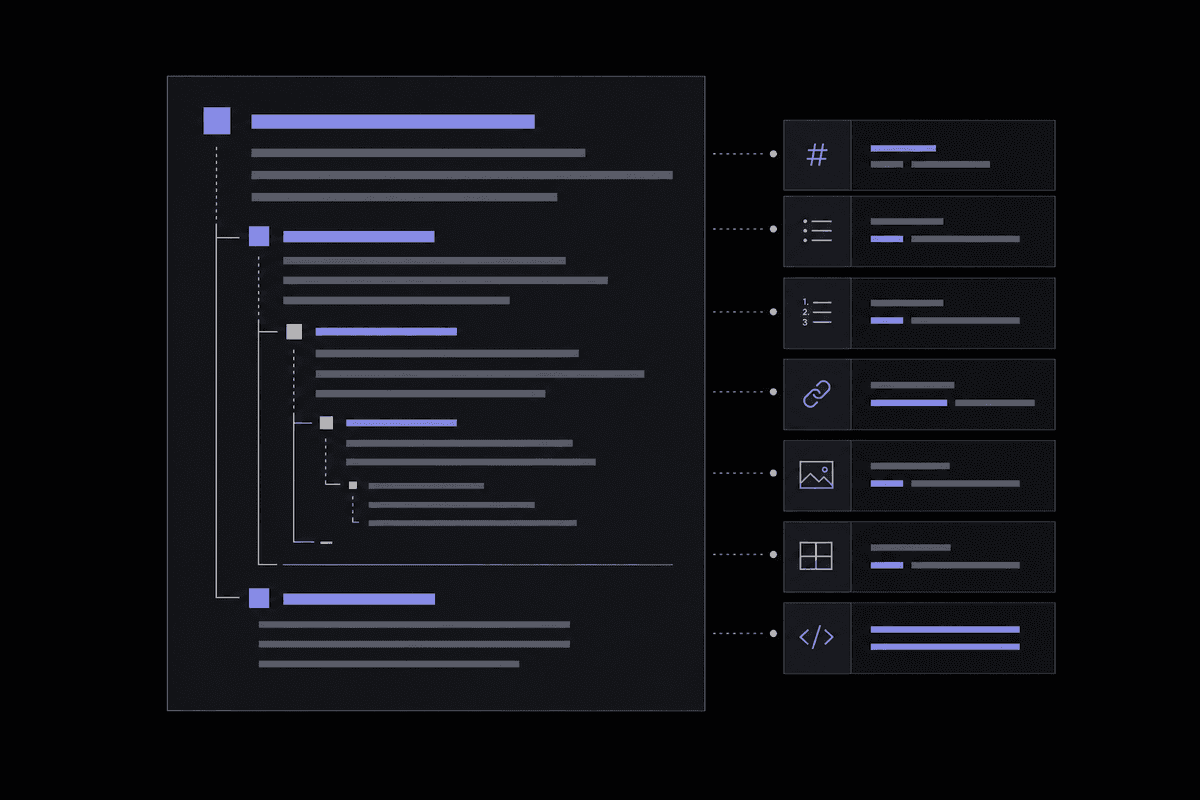
New to Markdown? This beginner's guide covers core syntax, a printable cheat sheet, and where to use Markdown in 2026—learn it in an afternoon.
What Is Markdown and Why Should You Learn It?
You've probably copied text from a Word document into a website editor and watched it turn into a formatting disaster. Fonts change, bullet points vanish, weird HTML characters appear everywhere. If you've experienced that particular kind of pain, markdown for beginners is the answer you didn't know you were looking for. Markdown solves this problem elegantly, and once you understand it, you'll wonder how you ever wrote anything without it.
Markdown was created by John Gruber and Aaron Swartz back in 2004 with a simple, stated goal: let people write using easy-to-read, easy-to-write plain text, then convert it to structurally valid HTML. The idea was that the formatting syntax should look like natural writing even before it gets rendered. A heading shouldn't require a menu click or an HTML tag. It should just look like a heading, with a pound sign and a space in front of it.
Two decades later, Markdown is practically everywhere. GitHub alone uses it for nearly every README file in its massive ecosystem, and developer surveys consistently show that Markdown powers roughly 90% of GitHub README files. Static site generators like Jekyll and Hugo rely on Markdown for about 70% of their content workflows. Reddit uses a version of it. Notion built its entire editor around Markdown-style shortcuts. Obsidian, Bear, Ghost, Substack, Discord, Slack, and even many email clients support Markdown syntax to some degree. If you write anything online for any audience, you will run into Markdown.
So why learn it instead of just using a rich text editor? A few reasons stand out. First, plain text files with Markdown syntax are completely portable. They open on any device, in any text editor, without any software license. Second, Markdown separates content from formatting concerns, which means you focus on writing and let the rendering engine handle the visuals. Third, Markdown files are version-control friendly. You can track changes in Git, diff two versions, and collaborate without sending bloated Word files back and forth.
The Markdown Guide author put it simply: "The best way to get started with Markdown is to use it." And that's genuinely good advice. You don't need to install anything. You don't need to read a manual for two hours before you start. You can open a free online editor right now and begin writing.
One common misconception worth addressing early: Markdown is not one universal standard. There are flavors. CommonMark is the most strictly specified version and has become the baseline that most modern tools follow. GitHub Flavored Markdown (GFM) adds features like task lists, tables, and strikethrough on top of CommonMark. R Markdown layers in executable code chunks for data science. Most of what you'll learn in the core syntax applies across all of them, and the differences only matter once you're writing for a specific platform. We'll flag those differences as we go.
If you're a writer, developer, student, or someone who just takes a lot of notes, learning Markdown basics is one of the highest-return-on-time investments you can make. It takes maybe an afternoon to get comfortable with the fundamentals, and you'll use those skills for years.
Basic Markdown Syntax: Headings, Bold, Italic, and Links
Let's get into the actual syntax. This is the part most beginner guides cover, but they often skip the nuances that make Markdown click. I want to give you real side-by-side examples so the logic becomes obvious rather than something you just memorize.
Headings
Headings in Markdown use the pound sign, also called a hash. The number of hash symbols determines the heading level, from H1 down to H6. There must always be a space between the last hash and the text, which is one of the most common beginner mistakes.
# This becomes an H1 heading
## This becomes an H2 heading
### This becomes an H3 heading
#### This becomes an H4 heading
In practice, you'll rarely use H1 in a Markdown document because most publishing platforms inject the page title as the H1 automatically. Start your document headings at H2 and work down from there. This matters for SEO and accessibility, not just aesthetics.
Bold and Italic
Bold text wraps in double asterisks or double underscores. Italic text uses single asterisks or single underscores. You can combine them.
**This is bold**
__This is also bold__

*This is italic*
_This is also italic_

***This is bold and italic***
Here's something most guides bury in a footnote: when you're using italics or bold inside a word (like in a technical term), asterisks behave more reliably than underscores across different Markdown parsers. For example, un*frigging*believable works in most parsers, but un_frigging_believable might not render correctly everywhere. Stick to asterisks when in doubt.
Links
Links follow a straightforward pattern: the visible link text goes in square brackets, and the URL follows immediately in parentheses.
[Visit our writing tools](https://toolsforwriting.com)
You can also add a title that appears as a tooltip on hover by adding it in quotes inside the parentheses:
[Visit our writing tools](https://toolsforwriting.com "Free online text tools")
For long documents with lots of links, reference-style links keep your prose readable. You define the URL separately and reference it by a label:
I love using [Tools for Writing][tfw] for text manipulation.

[tfw]: https://toolsforwriting.com
A common mistake I see is forgetting to close the square bracket before opening the parenthesis. The syntax [text](url) must be continuous with no space between the closing bracket and the opening parenthesis, or the link won't render. That one missing space has tripped up more beginners than I can count.
Escaping Characters
What if you actually want to display an asterisk or a pound sign without triggering formatting? Use a backslash before the character:
\*This will show the asterisk literally\*
\# This won't become a heading
This is especially useful when writing about Markdown itself, or when your text naturally contains symbols that Markdown would otherwise interpret as formatting cues.
Markdown Lists, Blockquotes, and Horizontal Rules
Lists are where a lot of beginners start to feel confident, and then immediately hit a wall with nested lists or blockquotes. Let's walk through each one clearly.
Unordered Lists
Unordered lists use hyphens, asterisks, or plus signs as bullets. Any of the three works, but mixing them in the same list can sometimes cause rendering inconsistencies depending on the parser, so pick one and be consistent.
- First item
- Second item
- Third item

* Also works
* Just like this
Ordered Lists
Ordered lists use numbers followed by periods. Here's an interesting quirk: the actual numbers you type don't matter for most parsers. Markdown will auto-number from the first number you use. So this:
1. First item
1. Second item
1. Third item
renders as a properly numbered 1, 2, 3 list. This is actually a feature, not a bug. It means you can insert items in the middle of a long list without renumbering everything. That said, some developers find all-ones lists confusing to read in the raw file, so it's a stylistic choice.
Nested Lists
Nested lists require indentation, typically two or four spaces before the nested bullet. The exact number depends on the parser, but four spaces is the safest universal choice.
- Main item
    - Sub-item one
    - Sub-item two
        - Sub-sub-item
- Another main item
When I tested this across different platforms including GitHub, Notion, and a standard CommonMark parser, four-space indentation worked consistently. Two spaces worked in most places but occasionally failed in stricter parsers. Four spaces is the safe default.
Blockquotes
Blockquotes use a greater-than sign at the start of each line. They're perfect for quoting sources, highlighting key passages, or calling out important notes.
> "Markdown is one of the most important text editing languages used everywhere like blogs."
> — YouTube Markdown crash course
You can nest blockquotes by adding multiple > symbols:
> This is a blockquote.
>> This is a nested blockquote inside it.
A practical tip: in long blockquotes, you don't need to put > on every line if the paragraph flows naturally. A blank line with a > on it separates blockquote paragraphs cleanly.
Horizontal Rules
Horizontal rules create visual dividers in your document. Use three or more hyphens, asterisks, or underscores on their own line:
---
***
___
All three render as a horizontal line. The one common mistake here: if you put three hyphens directly under a line of text without a blank line separating them, some parsers will interpret it as a Setext-style H2 heading instead of a divider. Always leave a blank line before your three hyphens.
Markdown Images, Code Blocks, and Tables
This section covers three features that separate casual Markdown users from people who can build real documents and technical content. Images, code blocks, and tables each have their own syntax quirks worth understanding carefully.
Images
Image syntax looks exactly like link syntax with an exclamation mark in front of it. The text inside the square brackets becomes the alt text, which matters for accessibility and SEO.

You can add an optional title the same way you do with links:

One thing Markdown doesn't natively handle well is image sizing. Standard Markdown has no syntax to set width or height. Most platforms handle this through CSS, or you fall back to raw HTML <img> tags with width attributes. If you need precise image sizing in Markdown, raw HTML is your friend, since most Markdown parsers will pass through HTML tags unchanged.
Code Blocks
Inline code uses single backticks and is great for short snippets, file names, or command-line arguments within a sentence:
Run `npm install` in your terminal.
Fenced code blocks use triple backticks before and after the code. Adding a language identifier right after the opening backticks enables syntax highlighting in most editors and platforms:
```javascript
function greet(name) {
  return `Hello, ${name}!`;
}
```
The language identifier options include python, javascript, html, css, bash, json, sql, and dozens more. GitHub and most modern Markdown renderers support syntax highlighting for over 100 languages. Using the identifier is always worth doing because it makes the code dramatically easier to read.
Tables
Tables aren't part of the original Markdown specification, but they're included in GitHub Flavored Markdown and most modern parsers. The syntax uses pipes and hyphens:
| Name       | Role        | Experience |
|------------|-------------|------------|
| Alice      | Developer   | 5 years    |
| Bob        | Designer    | 3 years    |
| Carol      | Writer      | 7 years    |
The alignment of columns in the raw text doesn't have to be perfect, but it does make the file more readable for anyone editing it. You can control text alignment within columns using colons in the separator row:
| Left-aligned | Centered | Right-aligned |
|:-------------|:--------:|--------------:|
| Text         | Text     | Text          |
Tables in Markdown can get unwieldy fast in complex layouts. If you find yourself building tables with lots of content per cell, consider whether an HTML table might be cleaner in that specific context. Markdown tables work beautifully for simple reference data, but they're not ideal for complex structured content.
Extended Markdown: Footnotes, Task Lists, and More
Once you've got the basics solid, you'll start running into features that exist in some Markdown flavors but not others. GitHub Flavored Markdown in particular adds several genuinely useful features that beginners encounter quickly.
Task Lists
Task lists are one of the most practical GFM additions. They're checkboxes you can render directly in your documents, and on GitHub, they're actually interactive in issues and pull request descriptions.
- [x] Write the introduction
- [x] Cover basic syntax
- [ ] Add cheat sheet
- [ ] Publish the post
The [x] renders as a checked box, and [ ] renders as an empty checkbox. This is incredibly useful for project README files, meeting notes, or any document where you want to track completion status visually.
Strikethrough
GFM adds strikethrough text using double tildes:
~~This text has a line through it~~
It renders with a horizontal line through the text, useful for showing deprecated information, corrections, or completed items in a list without deleting them.
Footnotes
Some Markdown parsers, including those used by many static site generators and documentation tools, support footnotes:
Here is a claim that needs a source.[^1]

[^1]: This is the footnote text that appears at the bottom of the document.
Footnotes render as superscript numbers in the text that link to the footnote content at the bottom of the page. GitHub does not render footnotes in READMEs, but many documentation platforms and static site generators do. Check your target platform before relying on them.
Automatic URL Linking
GFM automatically turns plain URLs into clickable links without needing the full [text](url) syntax. Just paste a URL and it becomes clickable:
https://toolsforwriting.com
If you want to display a URL without it becoming a link, wrap it in backticks to treat it as inline code.
Highlighted Text and Subscript/Superscript
Some extended Markdown implementations (particularly in note-taking apps like Obsidian) support highlighted text with double equals signs (==highlighted==), subscript with tildes (H~2~O), and superscript with carets (X^2^). These are not standard across platforms, so check your specific tool's documentation before depending on them in documents you plan to share widely.
The broader lesson here: always know your target environment. Markdown's strength is portability, but extended features can break that portability if you lean on syntax that isn't universally supported. Stick to CommonMark for maximum compatibility, and use extensions only when you're sure your renderer supports them.
Markdown Cheat Sheet (Printable)
This is the reference table you'll want to bookmark or print out. Everything in one place, scannable in seconds. The left column shows what you type, and the right column describes what it renders as.
| Markdown Syntax | Rendered Output |
|---|---|
# Heading 1 |
H1 heading (largest) |
## Heading 2 |
H2 heading |
### Heading 3 |
H3 heading |
**bold text** |
Bold text |
*italic text* |
Italic text |
***bold italic*** |
Bold and italic |
~~strikethrough~~ |
|
[Link text](url) |
Clickable hyperlink |
 |
Embedded image |
`inline code` |
Monospace inline code |
```language ... ``` |
Fenced code block with syntax highlighting |
- Item or * Item |
Unordered list bullet |
1. Item |
Ordered list number |
- [x] Task |
Checked task list item |
- [ ] Task |
Unchecked task list item |
> blockquote text |
Indented blockquote |
--- |
Horizontal rule / divider |
| Col 1 | Col 2 | with |---|---| |
Table with columns |
[^1] and [^1]: text |
Footnote reference and definition |
\*escaped\* |
Literal asterisk, not formatting |
| Blank line between paragraphs | New paragraph |
| Two spaces at end of line | Line break within paragraph |
Save this table. Screenshot it. Print it and tape it next to your monitor if that's your thing. The goal is to get this syntax into muscle memory, and having a quick visual reference nearby speeds that process up considerably.
One thing this cheat sheet doesn't show is the spacing rules, which matter more than most guides admit. Always leave a blank line before and after headings, code blocks, lists, and blockquotes. Parsers vary in their tolerance for missing blank lines, but including them consistently prevents a whole category of rendering surprises.
Where to Use Markdown in 2026
Knowing Markdown syntax is one thing. Knowing where to actually apply it in your daily work is what makes it useful. The good news is that the list of Markdown-friendly environments has only grown over the past few years.
Developer Platforms and Documentation
GitHub is the most prominent example. Every public repository has a README.md file that renders automatically as the project's front page. Pull request descriptions, issue comments, GitHub Pages sites, and GitHub wikis all support Markdown. If you contribute to open source at any level, fluent Markdown writing is close to mandatory.
Documentation tools like MkDocs, Docusaurus, and Read the Docs all build their sites from Markdown source files. Technical writers at companies ranging from small startups to large enterprises write their product documentation in Markdown and commit it to Git alongside the code it documents. This "docs as code" approach has become the dominant methodology for technical documentation teams.
Blogging and Static Sites
Jekyll and Hugo, the two most popular static site generators, both use Markdown as their primary content format. You write posts in .md files, add YAML front matter at the top with metadata like title and date, and the generator converts everything into a complete, deployable website. Ghost, the publishing platform used by many professional bloggers and newsletters, has deep Markdown support built in. Even WordPress, which traditionally used a visual editor, now integrates Markdown through plugins and its block editor.
Note-Taking Apps
The rise of Markdown-native note-taking apps has been one of the more interesting trends over the past few years. Obsidian, Bear, Typora, and Notion all support Markdown to varying degrees. Obsidian in particular has built an entire ecosystem of plugins and workflows around plain Markdown files, attracting a devoted following among writers, researchers, and knowledge workers who want their notes to be fully portable and not locked into any particular app's proprietary format.
Communication Tools
Slack and Discord both support a subset of Markdown formatting in messages. Bold, italic, code blocks, and blockquotes all work in Slack. Discord supports similar formatting plus strikethrough. Reddit uses its own flavor of Markdown for post and comment formatting. These aren't full Markdown implementations, but knowing the basics means you can format your communications more clearly without hunting through toolbar menus.
AI Writing Tools in 2026
This is worth mentioning because it's increasingly relevant: AI writing assistants like GitHub Copilot, Claude, and ChatGPT all output and interpret Markdown natively. When you prompt an AI to write content for you, it often returns Markdown-formatted text. Knowing how to read and edit that output, and how to paste it into your publishing workflow, has become a practical skill. Some AI-powered writing environments now offer Markdown editing with live preview and AI suggestions simultaneously, blurring the line between writing tool and content assistant.
Converting Markdown to Other Formats
Writing in Markdown is great, but eventually you need your content in a different format. A client wants a Word document. Your CMS expects HTML. Your email newsletter tool doesn't support Markdown directly. Knowing how to convert between formats cleanly is the final piece of a solid Markdown workflow.
Markdown to HTML
The most common conversion is Markdown to HTML, since that's what Markdown was designed for from the start. Every Markdown parser does this: it reads your .md file and outputs HTML that a browser can render. In static site generators, this conversion happens automatically as part of the build process. For one-off conversions, you have several options.
The simplest option for many people is using an online tool. Our Markdown to Text Converter handles both directions, converting Markdown to clean plain text or formatting plain text into Markdown. For full HTML output, our Text to HTML Converter can take plain text and produce properly structured HTML, which you can then style and use directly in a web page or CMS.
Pandoc is the command-line tool of choice for developers who need batch conversion or complex format support. It handles Markdown to HTML, Markdown to PDF, Markdown to Word, and dozens of other format combinations. The command is straightforward:
pandoc input.md -o output.html
pandoc input.md -o output.docx
pandoc input.md -o output.pdf
For PDF output, Pandoc routes through a LaTeX engine by default, which produces beautifully typeset documents but requires a LaTeX installation. For simpler PDFs, browser-based tools that render the HTML output and then print to PDF are often faster and easier.
HTML to Plain Text
Sometimes you have the opposite problem: you've got HTML from a website or CMS export and you need clean plain text. Our Remove HTML Tags tool strips all HTML markup and gives you just the text content, which you can then reformat or re-publish elsewhere.
Markdown to Plain Text
Stripping Markdown formatting to get clean plain text is useful when you're pasting content into environments that would display the raw syntax characters instead of rendering them. An email client that doesn't support Markdown would show your readers **bold** instead of bold text. Converting to plain text first solves that problem cleanly.
CommonMark Parsers and Libraries
If you're building your own application and need to render Markdown programmatically, language-specific libraries make this easy. JavaScript has marked.js and markdown-it. Python has python-markdown and mistune. Ruby has Redcarpet and kramdown. All of these take a Markdown string as input and return an HTML string you can inject directly into your page.
The practical workflow for most people looks like this: write in a Markdown editor with live preview, export or convert to HTML or your target format when you're ready to publish, and then use cleanup tools to handle any formatting artifacts that come along for the ride. With the right tools, the whole process takes seconds rather than minutes of manual reformatting.
Frequently Asked Questions
What is Markdown and who uses it?
Markdown is a lightweight markup language created by John Gruber in 2004 that lets you add formatting to plain text using simple symbols like asterisks, pound signs, and brackets. The formatted text converts cleanly to HTML or other output formats. It's used by developers writing README files on GitHub, writers publishing on Ghost or Jekyll-based blogs, data scientists generating reports in R Markdown, and note-takers using apps like Obsidian or Notion. Essentially, if you write anything that ends up on the web, you've probably already encountered Markdown without realizing it.
Do I need special software to write Markdown?
No. Markdown files are plain text files with a .md extension, so any text editor works. Notepad on Windows, TextEdit on Mac, Vim, and VS Code all handle Markdown files. That said, using an editor with Markdown preview support makes the experience much better. VS Code has excellent built-in Markdown preview. Online editors let you write and preview without installing anything at all. The key insight is that Markdown's whole design philosophy is that you shouldn't need special software to read or write it.
What is the difference between GitHub Flavored Markdown and regular Markdown?
Original Markdown (as defined by John Gruber) covers the basics: headings, bold, italic, links, images, lists, and code. GitHub Flavored Markdown (GFM) adds several extensions on top of that foundation, including tables, strikethrough text, task lists with checkboxes, and automatic URL linking. GFM is built on CommonMark, which is a precisely specified version of Markdown that resolves many ambiguities in the original spec. For most writing, the differences don't matter. They start to matter when you use tables or task lists and realize they only render correctly on platforms that support GFM.
How do I create a line break versus a new paragraph in Markdown?
A new paragraph requires a blank line between two blocks of text. Just hitting Enter once in most Markdown parsers will not create a new paragraph; it continues the same one. For a line break within a paragraph, add two spaces at the end of the line before pressing Enter. Some parsers also accept a backslash at the end of a line as a line break. This trips up beginners constantly because it's counterintuitive compared to how word processors work. The blank line rule is the one you'll use most often.
Can I use HTML inside a Markdown document?
Yes, in most Markdown parsers, you can include raw HTML directly in your Markdown file and it will pass through to the rendered output unchanged. This is useful for things Markdown doesn't handle natively, like setting image dimensions, creating complex table layouts, or adding HTML attributes like classes and IDs for CSS styling. The caveat is that some platforms and parsers sanitize HTML for security reasons, particularly in environments where untrusted users can submit Markdown content. GitHub, for example, strips some HTML attributes from rendered Markdown to prevent injection attacks.
How do I convert Markdown to a Word document or PDF?
The most capable tool for this is Pandoc, a free command-line converter that handles Markdown to Word (.docx), Markdown to PDF, and many other format combinations. For PDF output, it typically routes through a LaTeX engine, which produces excellent results but requires a LaTeX installation. Many static site generators and documentation tools have built-in export options as well. For quick conversions without command-line tools, you can convert your Markdown to HTML using our Markdown to Text Converter, then open the HTML in a browser and use the browser's print-to-PDF function for a fast, reasonably clean PDF output.
Is Markdown good for writing blog posts?
Markdown is excellent for blogging, and many professional bloggers prefer it over visual editors precisely because it keeps them focused on writing rather than formatting. Platforms like Ghost, Substack (with Markdown shortcuts), and any Jekyll or Hugo-based blog support Markdown natively. Even WordPress supports Markdown through plugins. The main advantage is that your content exists as portable plain text files that you own completely, not locked inside a platform's proprietary format. If you ever switch platforms, your content moves with you without any reformatting headaches.
What are the most common Markdown mistakes beginners make?
The most frequent ones: forgetting the space between the pound sign and heading text (# Heading needs a space, #Heading won't work); missing the blank line before headings and code blocks; accidentally creating a Setext-style heading by putting three hyphens directly under a line of text; forgetting that a closing square bracket must immediately precede the opening parenthesis in a link with no space between them; and using underscores for bold or italic inside a word, which many parsers won't render correctly. A good Markdown editor with live preview catches all of these instantly, which is why using one while you're learning is genuinely worth the minor effort of setting it up.
This article was drafted with AI assistance, fact-checked against primary sources, and reviewed by our editorial team before publishing. How we use AI.